From iPads to drawing tablets, finding the best digital art apps is the first step toward creating your own masterpieces. Digital art has become a fun, relaxing way for anyone to express themselves, but the sheer number of choices can be overwhelming.
This guide simplifies the process by highlighting the top apps for every device and skill level. We’ll show you exactly how to pick the right tool so you can stop searching and start drawing.
1. Procreate (iPad)
Paid one-time purchase (~$12.99)

Procreate is one of the most popular digital art apps, and for good reason. It’s friendly, intuitive, and feels close to real drawing. Once you’ve mastered the basics in Procreate, check out our guide on how to make digital art to take your skills to the next level.
Best For: Beginners to advanced artists, anyone who loves drawing on iPad
Why People Love It:
- Super smooth drawing experience
- Huge brush library (and you can import more!)
- Layers, blending modes, and animation tools
- Clean, beautiful interface
- No subscriptions
Perfect If You Want: An app that lets you draw, paint, and even animate with little learning curve.
Good to Know: Only available on iPad and iPhone.
2. Ibis Paint X (iPad, iPhone, Android)
Free, with optional paid upgrades
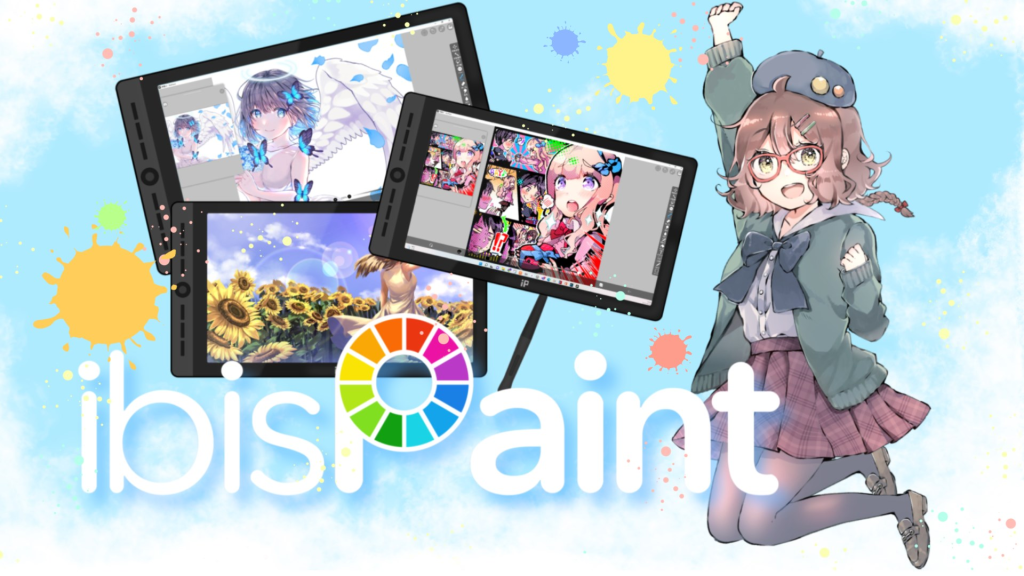
Ibis Paint X is a fan favorite, especially with teen and beginner artists. It has tons of brushes and great line tools, making it perfect for cartoon and anime styles.
Best For: People drawing on phones, anime/manga artists, artists on a budget
Why People Love It:
- Huge brush selection
- Stabilizer for smooth line art
- Works on phones and tablets
Perfect If You Want: A powerful app without needing an expensive device.
Good to Know: Some advanced tools are behind ads or paid versions.
3. Adobe Fresco (iPad, Windows)
Free version, paid upgrade for full features
Adobe Fresco focuses on natural painting experiences. Its “live brushes” react like real paint, watercolors spread, oils mix, and it feels surprisingly real.
Best For: People who love painting, traditional artists switching to digital, anyone who likes watercolor or oil textures
Why People Love It:
- Amazing real-paint brushes
- Works well with Apple Pencil
- Crisp vector brushes included
- Simple, beginner-friendly layout
Perfect If You Want: To paint digitally but still enjoy the feel of traditional media.
Good to Know: Some features require an Adobe subscription.
4. Krita (Windows, Mac, Linux)
Completely Free
Krita is a powerful, open-source painting app. It’s completely free but packed with features used by professional artists.
Best For: Desktop or laptop users, digital painters and concept artists, people who want free software without sacrificing quality
Why People Love It:
- Free forever
- Excellent brush engine
- Animation tools
- Tons of customization
Perfect If You Want: A desktop app powerful enough for professional work.
Good to Know: Not ideal for simple sketching on phones, it’s a full desktop program.
5. Clip Studio Paint (iPad, iPhone, Windows, Mac, Android)
Paid (subscription required on mobile, one-time purchase on desktop)

Clip Studio Paint is famous for its crisp, clean inking tools. If you love drawing characters, comics, or detailed illustrations, this app is a top pick.
Best For: Comic artists, manga creators, animators, people who draw detailed line art
Why People Love It:
- Best line art tools
- Vector layers for clean lines
- Comic panel tools
- 3D models for posing characters
Perfect If You Want: To make comics, manga, or character art.
6. Autodesk SketchBook (iPad, Android, Windows, Mac)
Free
SketchBook is extremely beginner-friendly. It’s lightweight, fast, and lets you focus only on drawing, no clutter, no confusion.
Best For: New digital artists, doodlers, people who want a clean, simple drawing app
Why People Love It:
- Very easy to learn
- Clean interface
- Free for personal use
- Great for sketching or concept art
Perfect If You Want: A simple “pick up and draw” type of app.
7. MediBang Paint (iPad, Android, Windows, Mac)
Free
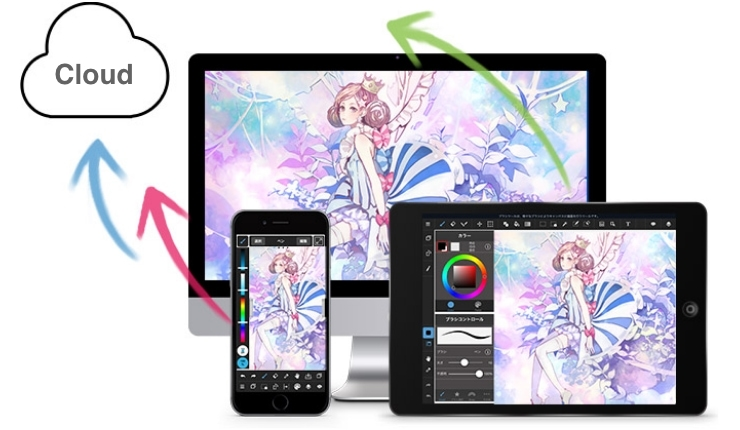
MediBang Paint feels like a lighter version of Clip Studio Paint. Lots of tools, cloud storage, and beginner-friendly features.
Best For: Beginner comic artists, people working on limited storage, anyone who wants a free comic-focused app
Why People Love It:
- 100% free
- Cloud syncing
- Comic panel tools
- Beginner-friendly
Perfect If You Want: To try digital comics without paying for an app.
8. Browser-Based Drawing Apps
Free
There are several browser-based tools (like Photopea, Aggie.io, Kleki, and Pixlr) that let you draw without downloading anything.
Best For: School Chromebooks, shared computers, quick sketching
Why People Love It:
- No installation needed
- Free to use
- Easy for beginners
Perfect If You Want: To draw on any device, including school laptops.
Free vs Paid Apps: What’s Worth the Money?
Let’s be honest about costs:
Free Apps: Krita, MediBang, Ibis Paint X (with ads), SketchBook, and browser tools offer incredible value. You can absolutely create professional work without spending a dime.
One-Time Purchase: Procreate ($12.99) and Clip Studio Paint desktop ($49.99) are solid investments. Pay once, own forever. No recurring fees.
Subscriptions: Adobe Fresco and Clip Studio mobile require monthly payments. Adds up over time but includes updates and cloud features.
The Reality: Start free. Learn the basics. Upgrade when you know what you need. Don’t let cost stop you from starting, many professional artists began with free tools.
Tips for Starting Your First Digital Drawing
Even with the right app, knowing where to start can feel overwhelming. Here are simple tips:
Start with simple shapes. Circles, squares, triangles, and lines help you warm up.
Choose 1-2 brushes, not 30. Beginners get stuck exploring brushes instead of drawing. Stick to one sketch brush, one line art brush, one coloring brush.
Use layers, they’re your friend. Separating sketch, lines, and colors makes everything easier. Separating sketch, lines, and colors makes everything easier. Learn more about layer techniques in our digital art shading guide.
Stabilization. Smooths out shaky lines. Critical for clean line art, especially if you’re drawing on a phone or have unsteady hands.
Experiment with blending modes. Shadows, highlights, and color effects become way easier.
Have fun with it. Digital art is supposed to be relaxing, playful, and creative, not stressful.
Common Beginner Struggles (And How to Overcome Them)
Every digital artist faces these challenges:
“It doesn’t look like real art.”
Digital art takes practice to not look “computer-y.” If you’re curious about what defines digital art and its various forms, read our comprehensive guide on what is digital art. Study traditional art principles, lighting, color theory, composition.
“My lines look terrible.”
Turn on line stabilization. Practice drawing from your shoulder, not your wrist. Use bigger canvases, small sizes make everything harder.
“I don’t know what to draw.”
Start with observation. Draw objects around you. Copy photos for practice. Follow drawing prompt accounts on Instagram.
“My colors look muddy.”
Use fewer layers with blending modes. Don’t over-blend. Study color theory basics. Sometimes less is more.
“I’m overwhelmed by all the features.”
Ignore 90% of features initially. Learn basic brushes, layers, and color picker. Advanced tools come later.
Start With What You Have
A lot of beginners worry about being “bad” at digital art when they start. But here’s the truth: You don’t have to be perfect to start. You just have to start. Whether you’re using an iPad, a school Chromebook, a phone, or a laptop from five years ago, you can make digital art. Once you’re comfortable creating, you might even want to sell your digital art or turn your designs into custom stickers to share with others.
All you need is curiosity and the courage to open your first blank canvas. So choose an app, start doodling, and enjoy the process! Tag us on Instagram, Facebook or TikTok to share your work @kickersketch.