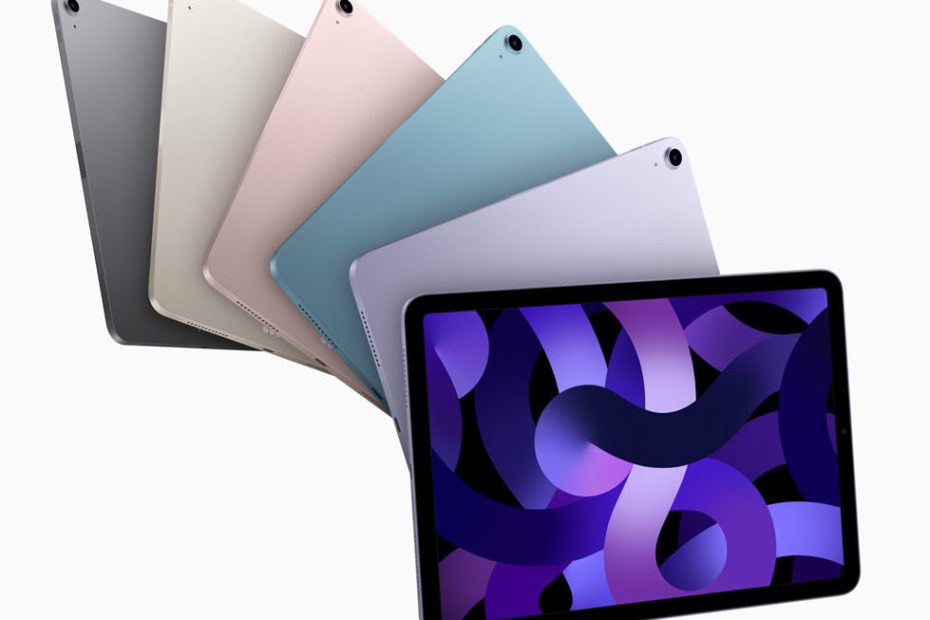
The iPad has completely transformed digital art, turning a portable tablet into a professional-grade creative studio. Whether you just picked up your first iPad or you’re upgrading to take your art seriously, choosing the right digital art apps for iPad can make all the difference in your creative journey.
This guide breaks down everything you need to know about iPad drawing apps, from free options perfect for beginners to understanding which features actually matter. By the end, you’ll know exactly which apps to download and how to start creating beautiful digital artwork on your iPad today.
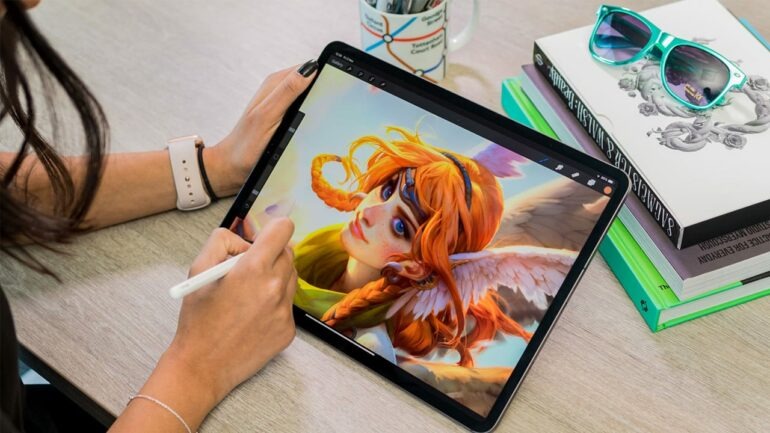
Why iPad Is Perfect for Digital Artists
The iPad, especially when paired with the Apple Pencil, has become the go-to device for digital artists worldwide. Here’s why it works so well:
Portability Meets Power
Create anywhere, your couch, coffee shops, while traveling. Unlike desktop setups, your entire studio fits in a backpack.
Natural Drawing Feel
Apple Pencil’s pressure sensitivity and tilt recognition mimic traditional drawing tools. The experience feels surprisingly close to pen and paper.
Powerful Performance
Modern iPads handle complex artwork with multiple layers, large canvases, and demanding brushes without lag.
Touch Interface
Intuitive gestures for zooming, rotating, and navigating make the creative process smooth and natural.
If you’re completely new to digital creation, understanding what is digital art helps you grasp the fundamentals before diving into specific apps.
Best Free Digital Art Apps for iPad
Budget-friendly doesn’t mean low quality. These free options rival many paid apps.
Adobe Fresco (Free Tier)
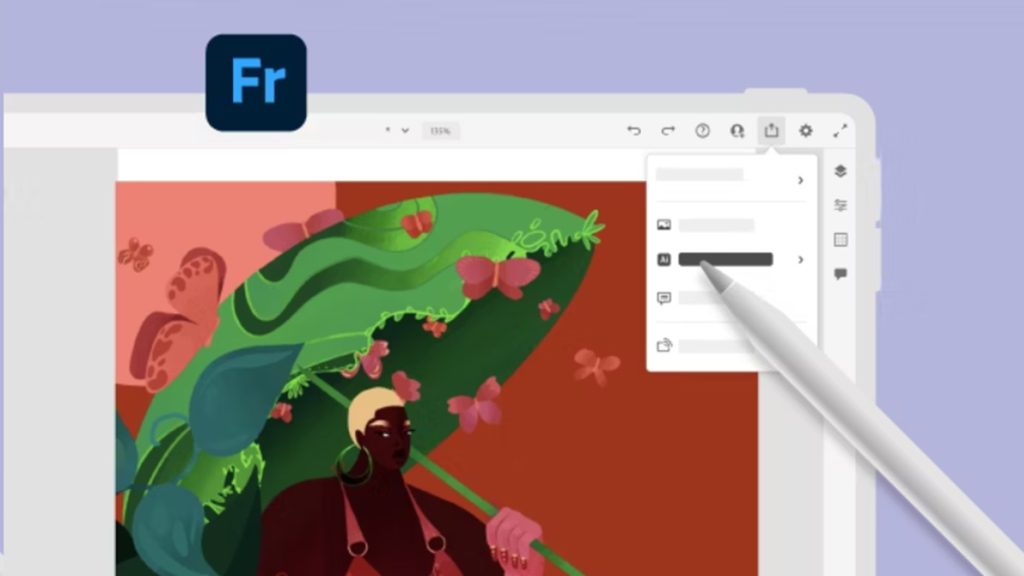
Adobe Fresco’s free version is surprisingly generous, offering professional-quality brushes and a clean interface perfect for beginners.
What You Get Free:
- Live watercolor and oil brushes that blend naturally
- Vector and pixel brushes
- Unlimited cloud storage (1GB)
- Apple Pencil pressure and tilt support
- Clean, distraction-free workspace
Best For: Painters who want realistic brush behavior and anyone exploring different media styles
Limitation: Some premium brushes and advanced features require Adobe Creative Cloud subscription
MediBang Paint
MediBang Paint is completely free with no hidden costs or ads, rare in today’s app market.
Key Features:
- Unlimited layers (seriously!)
- Cloud syncing across devices
- Comic creation tools with premade panels
- Tons of free fonts, backgrounds, and tones
- Cross-platform compatibility
Best For: Comic artists, manga creators, and illustrators who work on multiple devices
Why Beginners Love It: Simple interface with helpful tutorials and an active community
Autodesk Sketchbook
Sketchbook became fully free and remains one of the cleanest, most beginner-friendly digital art apps for iPad.
Highlights:
- Professional-grade brushes
- Symmetry tools (perfect for mandalas and patterns)
- Perspective guides
- Minimal UI that disappears when drawing
- No ads, no subscriptions, no catches
Best For: Pure sketching, concept art, and artists who want simplicity without sacrificing quality
Once you’re comfortable with basic drawing, learning proper shading techniques will dramatically improve your artwork’s depth and realism.
Looking for options beyond iPad? Our complete guide to the best free digital art apps covers every platform, Android, desktop, and mobile, helping you find the perfect app no matter what device you’re using.
Best Paid Digital Art Apps for iPad
These paid apps offer additional features that many professional artists find worth the investment.
Procreate ($12.99)
Procreate is the most popular paid digital art app for iPad, and for good reason. It’s a one-time purchase with no subscriptions.
Why Artists Love Procreate:
- Buttery-smooth drawing experience
- 200+ layers on most iPads
- Massive brush library plus custom brushes
- Animation assist feature
- Time-lapse recording of your process
- Regular free updates
Best For: Serious hobbyists and professionals who want the most polished iPad art experience
Worth the Price? Absolutely. At $12.99 one-time, it’s cheaper than a single month of most subscriptions and offers professional-grade tools.
Clip Studio Paint ($4.49/month or $49.99/year)

Clip Studio Paint is famous for crisp, clean line art and comic creation tools.
Standout Features:
- Best-in-class inking and line art
- 3D models for pose reference
- Vector layers for infinitely scalable lines
- Comic panel and speech bubble tools
- Massive brush and material library
Best For: Comic artists, manga creators, character designers, and anyone focused on detailed line work
Pricing Note: Requires subscription on iPad (one-time purchase available on desktop)
Affinity Designer ($21.99)

Affinity Designer is a vector-focused app, meaning your artwork stays crisp at any size.
Key Advantages:
- True vector drawing tools
- Professional graphic design features
- No subscription (one-time purchase)
- Desktop-class performance
Best For: Logo design, graphic design, and artwork that needs to scale infinitely
Free vs Paid: Which Digital Art Apps for iPad Should You Choose?
The honest answer? Start free, upgrade when you know what you need.
Start with Free Apps If:
- You’re brand new to digital art
- You want to explore different styles
- Budget is a concern
- You’re not sure if digital art is for you
Consider Paid Apps When:
- You’ve outgrown free app limitations
- You need specific professional features
- You’re ready to invest in your creative growth
- You want the most polished user experience
Many professional artists use free apps exclusively. MediBang Paint and Autodesk Sketchbook create artwork indistinguishable from Procreate in the right hands. Skill always matters more than software cost.
For a comprehensive comparison of options across all devices, check out our complete guide to the best free digital art apps.
iPad Models: Which One Do You Need for Digital Art?
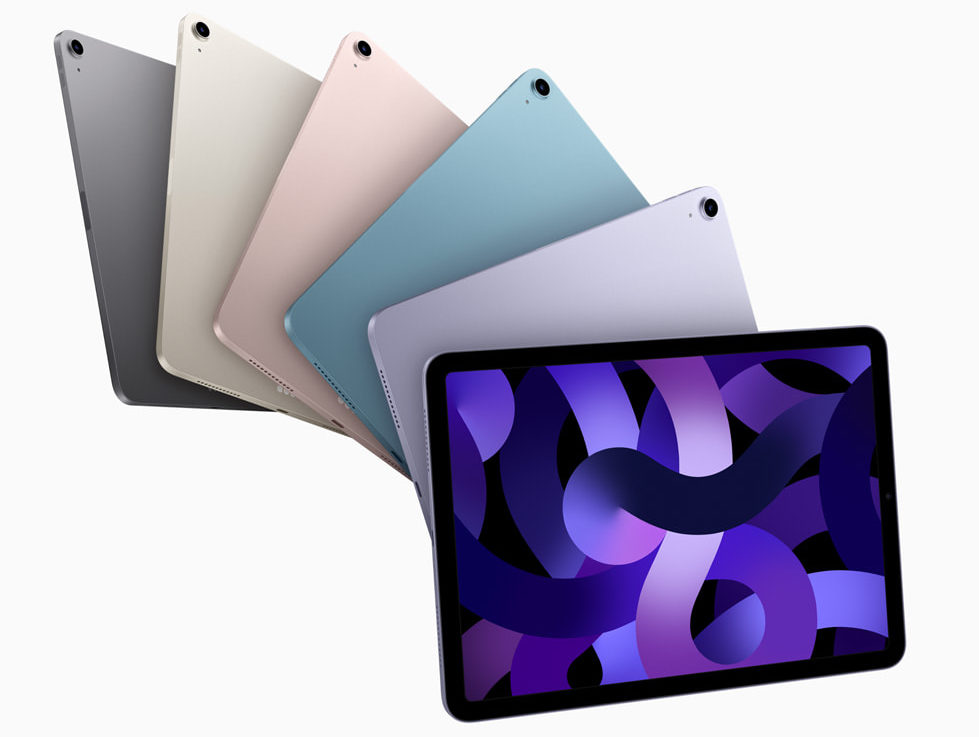
Not all iPads are equal for digital artists. Here’s the breakdown:
iPad Pro (Best for Professionals)
Advantages:
- Largest screen options (11″ and 12.9″)
- Most powerful processor
- ProMotion 120Hz display (ultra-smooth drawing)
- Most layers in apps like Procreate
Who Needs It: Professional artists, serious hobbyists, anyone creating large, complex artwork
iPad Air (Best Balance)
Advantages:
- Apple Pencil 2 support
- Strong performance
- More affordable than Pro
- Handles most art projects easily
Who Needs It: Dedicated hobbyists, emerging artists, students
Standard iPad (Best Budget Option)
Advantages:
- Most affordable iPad
- Apple Pencil support (1st gen)
- Runs all major art apps
- Perfect for learning
Who Needs It: Beginners, casual artists, those on tight budgets
Reality Check: Even the standard iPad creates professional-quality artwork. Your skill matters infinitely more than which iPad model you own.
Turning iPad Art Into Real Products

Digital art isn’t just for screens. Many artists turn iPad creations into physical products:
Custom Stickers
Design stickers on your iPad, export high-resolution files, and print at home or through services. Our tutorial on how to make stickers walks through the complete process.
Art Prints
Sell digital downloads or physical prints of your iPad artwork through Etsy, Shopify, or print-on-demand services.
Commissions
Many artists take paid commissions using only their iPad. Clients don’t care which device you used, they care about the final result.
Social Media Content
Build a following by sharing your iPad art journey. Time-lapse recordings from Procreate perform especially well on Instagram and TikTok.
Browse our shop to see examples of how digital artwork transforms into finished products.
Common Questions About Digital Art Apps for iPad
Do I need the Apple Pencil?
While not absolutely required, the Apple Pencil dramatically improves the digital art experience. Finger painting works for casual sketching, but the Apple Pencil’s pressure sensitivity and precision make serious artwork much easier.
Can I use a cheap stylus instead of Apple Pencil?
Budget styluses work for basic drawing but lack pressure sensitivity and palm rejection. If you’re serious about iPad art, save for the Apple Pencil, it’s worth the investment.
Which iPad art app is best for beginners?
Autodesk Sketchbook (free) or Procreate ($12.99 paid) are both excellent starting points. Sketchbook offers simplicity, while Procreate provides more features to grow into.
Can I create professional artwork on iPad?
Absolutely. Many professional illustrators, concept artists, and designers work primarily on iPad. The device and apps are capable, skill development is what matters.
How much storage do I need for digital art on iPad?
64GB works for casual artists. Serious artists benefit from 128GB or more, especially when working with large canvases and multiple projects.
Final Thoughts

The iPad’s combination of portability, power, and natural drawing feel makes it one of the best devices for digital art. Whether you choose free apps like MediBang Paint and Sketchbook or invest in Procreate, you have everything needed to create stunning artwork.
The best digital art apps for iPad provide professional tools in a portable package. Now the only thing standing between you and creating is opening that first blank canvas.
If you have questions about iPad art apps, need advice on getting started, or want to share your creative journey, reach out through our contact page and share your artwork with us on Instagram!